
The Smart TV IPTV App Everyone Seems to Recommend — But Should They?
Search for IPTV apps that work on Samsung or LG Smart TVs and SS IPTV shows up almost immediately. Forums recommend it, YouTube tutorials cover it, and it consistently appears on lists of the best IPTV players for Smart TVs. There’s a reason for that — but there’s also a lot the recommendations leave out.
SS IPTV is a free IPTV player app designed specifically for Smart TVs, and it genuinely solves a real problem: most premium IPTV apps don’t have native Smart TV versions, which leaves a lot of users stuck trying to sideload apps or use workarounds. SS IPTV fills that gap cleanly on Samsung Tizen and LG webOS devices.
What it isn’t, though, is a streaming service. It needs an IPTV subscription to do anything useful — and the quality of your experience depends almost entirely on the provider you pair it with. This review covers what SS IPTV actually does, how to set it up, what it does well, and where its real limitations sit.
What Is SS IPTV?
SS IPTV is a free IPTV player application developed primarily for Samsung Smart TVs (Tizen OS) and LG Smart TVs (webOS). It’s available directly through the Samsung Apps Store and LG Content Store, which makes it one of the few IPTV players you can install on a Smart TV without sideloading or using any workarounds.
The app itself is a media player — think of it like VLC, but built specifically for Smart TVs and IPTV streams. It doesn’t include any channels, subscriptions, or content on its own. To use SS IPTV, you need to connect it to an external source: an M3U playlist URL, an Xtream Codes subscription, or a direct stream URL from an IPTV provider.
It’s been around for several years and has built up a stable user base, particularly among Samsung TV owners who find that other popular apps like TiviMate or IPTV Smarters don’t have native Tizen versions. SS IPTV is available, works without sideloading, and handles M3U playlists reasonably well. That combination alone explains a lot of its popularity.
The developer behind SS IPTV is independent — not backed by a telecom company or major software firm — and the app is maintained through what appears to be a small team. Updates come periodically, though less frequently than some competing apps on Android.
How SS IPTV Works
Setting up SS IPTV is more straightforward than most Smart TV IPTV solutions. The basic process on a Samsung or LG TV:
- Open the app store on your Smart TV (Samsung Apps or LG Content Store)
- Search for “SS IPTV” and install it
- Open the app and navigate to the playlist or provider section
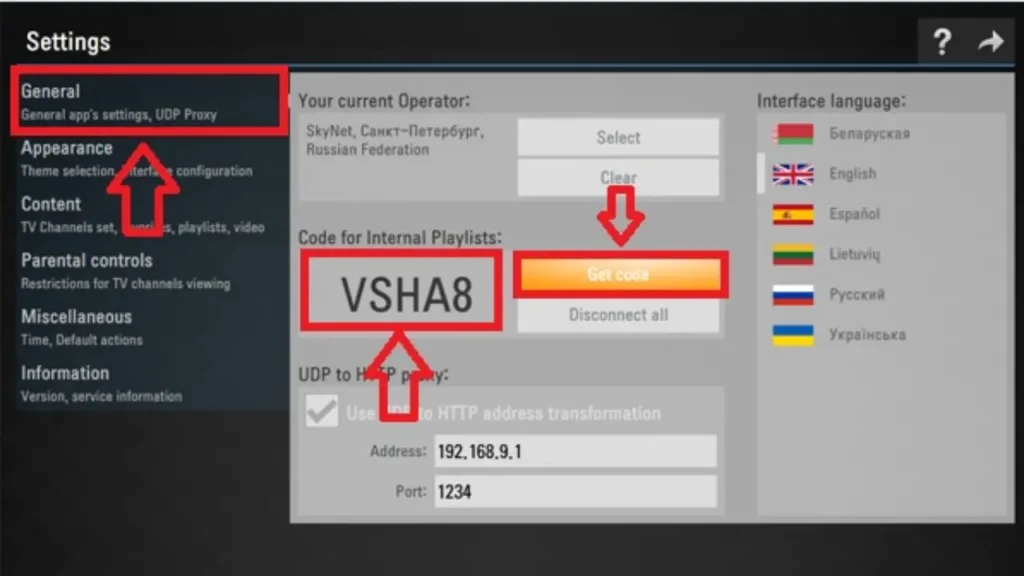
- Enter your M3U URL or Xtream Codes credentials from your IPTV provider
- The app loads your channel list and you’re watching
The app pulls your channel list and streams directly from your provider’s server. When you select a channel, SS IPTV sends a request to the server, receives the stream, and plays it through the TV’s built-in media decoder. Your internet connection and your provider’s server quality determine the actual viewing experience.
One feature that sets SS IPTV apart slightly is its ability to load playlists from multiple sources — including local network shares (DLNA/SMB), which is useful if you’re managing a playlist file yourself rather than using a live server URL. It also supports EPG (Electronic Program Guide) data loaded from a separate XMLTV URL, which lets you see what’s currently airing and what’s coming up on each channel.
For users who prefer not to enter credentials directly into the TV, SS IPTV has a companion feature where you can configure your playlist via a web browser on a PC or phone and push the settings to the TV. That’s genuinely convenient for anyone who finds typing URLs on a TV remote tedious.
Key Features of SS IPTV
M3U and Xtream Codes Support
SS IPTV supports both main IPTV credential formats. M3U playlist URLs load directly; Xtream Codes login (server URL, username, password) connects via the API. Both work, though the Xtream Codes integration is less feature-rich than what you’d get in TiviMate — VOD browsing and catch-up support through Xtream Codes varies depending on your provider and the version of the app.
EPG Support
Electronic Program Guide data loads from an XMLTV source URL, which your IPTV provider should supply alongside your credentials. When the EPG loads correctly, you can see current and upcoming programming for each channel — a feature that makes the difference between a proper TV experience and a bare list of channel names.
EPG reliability in SS IPTV can be inconsistent. Some users report the guide loading perfectly every time; others find it needs periodic manual refreshes or doesn’t populate for all channels. This is partly a provider issue (EPG quality varies) and partly a limitation of how the app handles EPG caching.
Multi-Playlist Support
You can load more than one playlist in SS IPTV, which is useful if you want to organize channels from different sources or keep personal content separate from your IPTV subscription. Each playlist appears as a separate source in the app’s navigation.
Subtitles and Audio Tracks
The app supports external subtitle files and can switch between multiple audio tracks when a stream carries them. This matters for international content where you might want to switch between dubbed and original language audio.
Interface and Navigation
The interface is functional and remote-friendly. Channel categories appear on the left, the channel list in the center, and stream info or EPG on the right. Navigation with a TV remote is smooth enough, though the interface design is utilitarian rather than polished — it gets the job done without being particularly enjoyable to look at.
Honest Review: Where SS IPTV Delivers and Where It Doesn’t
The Good
SS IPTV solves a genuine gap in the Smart TV IPTV market. Getting a proper IPTV player on a Samsung or LG TV without sideloading is legitimately difficult, and SS IPTV does it without any workarounds. Installation takes two minutes from the app store.
For users with a solid M3U playlist and a good IPTV provider, the basic live TV experience works reliably. Channels load quickly on stable connections, and the multi-playlist feature gives you some organizational flexibility.
The web-based configuration option is a thoughtful addition. Typing a long M3U URL on a TV remote is painful — being able to do it from a browser and push the config to the TV is the kind of small detail that makes a real difference in day-to-day use.
The Problems
VOD support is limited compared to dedicated apps. SS IPTV can play VOD content from an Xtream Codes provider, but the browsing experience is basic — no proper categories, no search that works well, no watchlist. If you use VOD regularly, this is a meaningful limitation.
Catch-up TV support is inconsistent. Some providers’ catch-up content loads fine; others don’t work at all through SS IPTV even when the same content loads correctly in another app. This is partly a compatibility issue between how the app handles catch-up requests and how different providers implement the feature.
Updates are infrequent compared to Android apps like TiviMate, which receives regular development. SS IPTV works well on supported TV models, but users with newer TV firmware versions occasionally report bugs that persist for extended periods before a fix arrives.
Finally, SS IPTV is only genuinely useful on Samsung and LG Smart TVs. If you have a different TV brand, a Firestick, or an Android TV box, other apps will serve you better.
SS IPTV Compared to Other IPTV Players
| Feature | SS IPTV | TiviMate | IPTV Smarters | GSE Smart IPTV | Perfect Player |
|---|---|---|---|---|---|
| Samsung Smart TV | ✓ Native | ✗ | ✗ | Limited | ✗ |
| LG Smart TV | ✓ Native | ✗ | ✗ | Limited | ✗ |
| Android / Firestick | ✗ | ✓ Best option | ✓ | ✓ | ✓ |
| iOS / Apple TV | ✗ | ✗ | ✓ | ✓ | ✗ |
| M3U support | ✓ | ✓ | ✓ | ✓ | ✓ |
| Xtream Codes | ✓ Basic | ✓ Full | ✓ Full | ✓ Full | ✓ |
| VOD browsing | Basic | Excellent | Good | Good | Basic |
| EPG reliability | Variable | Excellent | Good | Good | Good |
| Catch-up TV | Variable | Good | Good | Good | Basic |
| Cost | Free | Free/Premium | Free | Free/Paid | Free |
| Update frequency | Slow | Regular | Regular | Regular | Slow |
The table tells the story clearly. SS IPTV wins on Smart TV compatibility — that’s its primary reason to exist. On every other dimension, Android-based players like TiviMate outperform it significantly. If you’re on a Samsung or LG TV and don’t want to use an external device, SS IPTV is the most practical option. If you have a Firestick or Android TV box, use TiviMate instead.
The Other Half of the Equation: Your IPTV Subscription
SS IPTV is only as good as the subscription you connect to it. This is where most reviews stop short — they cover the app but not the service quality that actually determines your daily experience.
A weak IPTV provider means buffering, dead channels, and a VOD library that doesn’t load properly. A strong one means streams that play instantly, an EPG that populates reliably, and content that’s actually available when you click it. The app is just the window — what matters is what’s behind it.
IPTV Subscription 4K is one of the more complete services available right now, and it pairs well with SS IPTV via both M3U and Xtream Codes credentials.
The channel count sits at 47,000+ live channels — covering sports, news, entertainment, kids, and international content from over 100 countries. The VOD library runs to 180,000+ titles, which is a depth that genuinely takes months to work through. Both load through SS IPTV using standard Xtream Codes login.
Stream quality goes up to 4K ultra-HD, and the service uses anti-freezing technology that keeps streams stable even when your connection speed varies. The full EPG populates reliably in SS IPTV — which, given how variable EPG support can be with this app, is something worth specifically noting. Catch-up TV is also supported.
Beyond Samsung and LG TVs, the subscription works across every other device you might own: Firestick, Android, iOS, MAG box, Apple TV. So if you ever add a streaming device to your setup, the same subscription covers it.
24/7 customer support is available if anything needs sorting, and pricing is honest:
- €15/month
- €30 for 3 months
- €45 for 6 months
- €65/year — just over €5/month on the annual plan
Pairing a capable player like SS IPTV with a service at this scale gives you a proper television setup on your Smart TV without buying extra hardware.
Frequently Asked Questions About SS IPTV
What devices does SS IPTV work on?
SS IPTV is designed primarily for Samsung Smart TVs (Tizen OS) and LG Smart TVs (webOS). It’s available directly from the Samsung Apps Store and LG Content Store. It does not have native versions for Android TV, Firestick, iOS, or Apple TV — for those platforms, apps like TiviMate or IPTV Smarters are better choices.
Is SS IPTV free?
Yes, SS IPTV itself is a free app. You download it from your Smart TV’s app store at no cost. To watch any content, you need a separate IPTV subscription from a provider — the app doesn’t include any channels or content on its own.
How do I set up SS IPTV with an M3U playlist?
Install SS IPTV from your TV’s app store, open the app, and navigate to the playlist section. Enter your M3U URL in the provided field and confirm. The app will load your channel list from the URL. For EPG data, enter the XMLTV URL your provider supplies in the EPG section of the settings.
Why isn’t my EPG loading in SS IPTV?
EPG loading issues in SS IPTV usually come from one of three causes: the XMLTV URL your provider gave you isn’t working, the EPG data format isn’t fully compatible with how SS IPTV processes it, or the guide needs a manual refresh after initial load. Try forcing a refresh in the app’s EPG settings. If it still doesn’t populate, check with your provider that the XMLTV URL is active.
Can I use SS IPTV with Xtream Codes login?
Yes. SS IPTV supports Xtream Codes login — you enter your server URL, username, and password, and the app connects to your provider’s API. The live TV section works well via Xtream Codes; VOD browsing and catch-up TV support are more limited than in dedicated apps like TiviMate, but basic functionality is available.
Is SS IPTV legal?
SS IPTV is a media player app — the app itself is entirely legal and available in official app stores. Whether your use of it is legal depends on your IPTV subscription. If your provider holds proper content licenses, you’re fine. If they don’t, that’s where the legal gray area sits — with the provider, not the player.
What should I do if SS IPTV keeps buffering?
Buffering in SS IPTV is almost always either a provider issue or a network issue — rarely the app itself. First, check your internet connection speed (you need at least 10 Mbps for HD, 25 Mbps for 4K). If your connection is fine, the issue is likely your IPTV provider’s server under load. Try switching to a different stream quality or contact your provider during off-peak hours to compare.
The Bottom Line
SS IPTV earns its reputation specifically for what it does: putting a functional IPTV player on Samsung and LG Smart TVs without any sideloading or workarounds. For that use case, it’s the most accessible option available and works well when paired with a quality IPTV subscription.
Where it shows its limits is everywhere else — VOD browsing, catch-up reliability, update pace, and compatibility outside Smart TVs. If you’re on Android or Firestick, skip it and use TiviMate. But if your main screen is a Samsung or LG TV and you don’t want to plug in an extra device, SS IPTV gets the job done.
Pair it with a service that delivers at scale — like IPTV Subscription 4K with its 47,000+ channels and 180,000+ VOD titles — and the combination covers everything a proper home TV setup needs. Starting at €65/year, the annual plan makes it one of the most cost-effective full-TV solutions available in 2026.
Ready to get started? Set up SS IPTV on your Smart TV and connect it to IPTV Subscription 4K for a complete streaming experience from day one.