

Here’s a question most Xbox owners have googled at least once: can I actually watch live TV on this thing? The short answer is yes — and if you set it up right, it works better than you’d expect. IPTV Xbox is a genuinely underrated setup, and it’s one that millions of cord-cutters have quietly adopted over the last few years.
The longer answer is that it takes a bit of know-how. Xbox consoles aren’t designed with IPTV front and center, so the path to getting a smooth, buffer-free stream requires picking the right app, pairing it with a solid subscription, and understanding a few basic settings. That’s exactly what this guide covers.
Whether you’re sitting on an Xbox Series X, Series S, or an older One, the process is similar — and by the end of this article, you’ll know exactly what to do, what to avoid, and which IPTV subscription is worth your money in 2026.
What Is IPTV Xbox — and Why Does It Matter?
IPTV stands for Internet Protocol Television. Instead of receiving TV signals via satellite or cable, you receive them over the internet — streamed directly to your device in real time. Think of it like Netflix, except instead of on-demand movies and shows, you’re watching live channels from around the world, with full EPG (Electronic Program Guide) support so you can browse what’s on.
When people talk about IPTV Xbox, they mean using their Xbox console as the screen for that live TV stream. The Xbox isn’t a native IPTV receiver, but it supports certain apps that can handle M3U playlists and stream live content — which is exactly what IPTV providers deliver.
Why does this matter? Because your Xbox is already connected to your TV and the internet. It’s a powerful piece of hardware with a fast processor, clean interface, and typically an excellent connection — either wired Ethernet or strong Wi-Fi. Using it as an IPTV device means one less box under your TV, and for many people, a noticeably better streaming experience than cheaper Android sticks.
IPTV vs Traditional TV: The Basics
Traditional cable or satellite delivers a fixed set of channels based on your regional provider. IPTV blows that wide open. A decent subscription gives you access to thousands of channels from multiple countries — news, sports, entertainment, kids, documentaries — all in one place.
Add a VOD (Video on Demand) library on top of that, and you’ve essentially replaced your cable box and your streaming subscription at once. The trade-off is that quality depends heavily on your internet connection and the reliability of your provider — which is why choosing the right one matters more than anything else.
How Does IPTV Xbox Works?
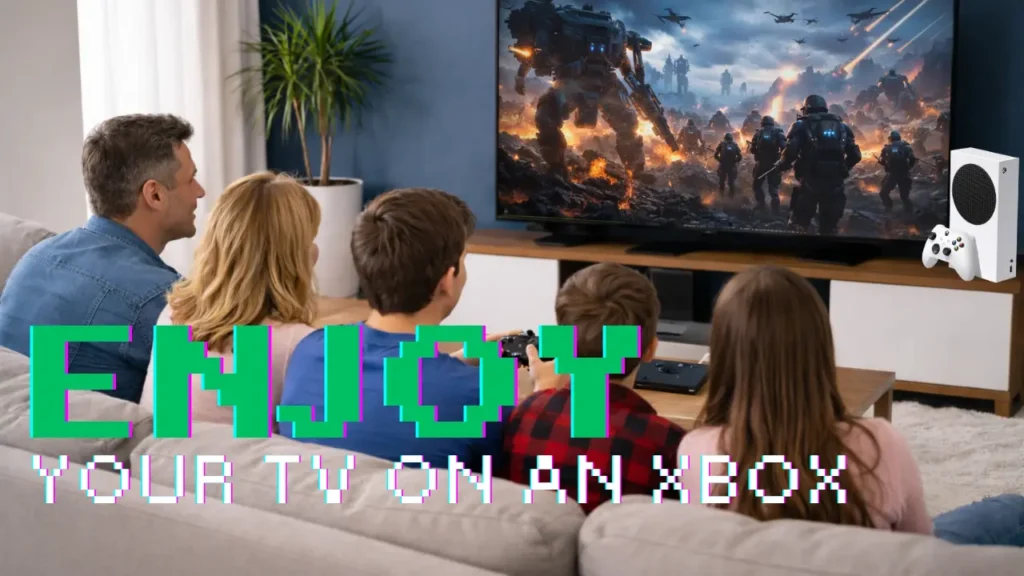
Xbox doesn’t have a dedicated IPTV app from Microsoft. So how do you actually run it? There are two main routes, and which one you use depends on your Xbox model and comfort level.
Route 1: Using an IPTV App from the Microsoft Store
A handful of IPTV apps are available directly through the Microsoft Store on Xbox. The most well-known is IPTV Smarters, which supports M3U playlists and Xtream Codes API — the two most common formats IPTV providers use to deliver content. Once installed, you log in with your provider credentials or paste your M3U URL, and the app pulls in your channel list automatically.
Some other apps worth checking out include TiviMate (though its Xbox version is more limited than the Android one) and OTT Navigator. Availability can shift since Microsoft occasionally removes apps from the store, so it’s worth checking what’s current when you’re reading this.
Route 2: Xbox Dev Mode (Sideloading)
For more advanced users, Xbox supports a Developer Mode that lets you sideload apps not available in the store. This requires a one-time $20 fee to Microsoft and puts your console in a special mode where you can install Android APKs through an emulator layer.
Honestly, this route is more hassle than it’s worth for most people. If a store app does the job, use that. Dev Mode is mainly useful if you want to run a specific Android IPTV app that isn’t officially on Xbox.
What You Need Before You Start
Before anything else, you need three things:
- An Xbox console with a stable internet connection (wired is better for streaming)
- An IPTV app installed from the Microsoft Store
- An active IPTV subscription that provides an M3U URL or Xtream Codes login
That last point is the most important one. The app is just a player — the subscription is what determines the quality, channel count, and reliability of everything you watch.
What Makes a Good IPTV Setup on Xbox?
Not all IPTV experiences are equal. Here’s what separates a setup that actually works from one that frustrates you into going back to Netflix.
Stable, Fast Internet
For 4K streams, you want at least 25 Mbps stable throughput. For HD, 10–15 Mbps is enough. Ethernet is strongly preferred over Wi-Fi for live TV — even a momentary signal drop causes buffering that ruins a live match or a breaking news moment.
A Reliable App with EPG Support
The app needs to load your EPG properly so you can see what’s currently on and what’s coming next — otherwise you’re just scrolling through a list of channel names with no context. IPTV Smarters handles this well. The EPG refresh might take a few minutes on first load, but once it’s in, navigation feels surprisingly close to a regular TV guide.
Catch-Up TV
This is a feature many people don’t think to ask about until they miss something. Catch-up lets you go back and watch content that aired in the last 7 days (timing varies by provider). It’s particularly valuable for sports — if you’re in a different time zone or missed a match, catch-up is the difference between watching it properly and hunting for a dodgy highlight reel.
Anti-Buffering Technology
Some IPTV providers use server-side load balancing and stream redundancy to reduce freezing. If a server goes down or gets overloaded during peak times, the stream automatically reroutes. You won’t see any of this happening — it just works. This is one of those under-the-hood features that separates premium providers from cheap ones.
Honest Review: IPTV Xbox in Real-World Use
Let’s talk about what it’s actually like day-to-day, not just the spec sheet.
The Good
When it works, watching IPTV Xbox is genuinely great. The screen quality on a modern 4K TV paired with a Series X is hard to beat. Channels load quickly, the EPG is clear, and switching between live TV and VOD is seamless. If you’re a sports fan, the combination of live international channels plus catch-up TV is probably the biggest selling point — you can follow leagues and broadcasts that your cable provider simply doesn’t carry.
The IPTV Xbox controller also works fine for navigation once you get used to it. It’s not as natural as a TV remote, but it’s not awkward either. Most apps map their interface sensibly to the controller layout.
The Limitations
The honest limitations are worth flagging. Not every IPTV app on the Microsoft Store is well-maintained, and some feel like they were abandoned years ago. You need to do your homework on which app is currently working well before committing.
Also, Xbox’s hardware is powerful, but it’s not primarily designed for this use case. You might occasionally run into performance quirks — slow EPG loading, the odd UI freeze — that wouldn’t happen on a dedicated Android TV box. These aren’t dealbreakers, but they’re worth knowing.
And of course, IPTV quality lives or dies with the provider. A great app with a weak subscription will disappoint. A mediocre app with a strong, well-maintained server infrastructure will still give you a solid experience.
IPTV Xbox vs Other IPTV Devices Comparison
| Device | IPTV App Support | 4K Streaming | Ease of Setup | Best For |
|---|---|---|---|---|
| Xbox Series X / S | Via Microsoft Store apps | Yes | Moderate | Gamers who also want IPTV |
| Amazon Firestick 4K | Excellent (sideload or store) | Yes | Easy | Budget-friendly cord-cutters |
| Android TV Box | Best (full Android APK support) | Yes | Easy–Moderate | Dedicated IPTV users |
| Smart TV (native) | Limited (depends on brand) | Yes | Easy | Casual viewers |
| MAG Box | Built-in IPTV portal | Depends on model | Easy | Traditional IPTV users |
The takeaway here: Xbox isn’t the most dedicated IPTV device on the market, but if you already own one, there’s no reason to buy another box. It does the job well, especially with the right subscription behind it.
The Subscription That Actually Makes This Worth It
You can have the best IPTV Xbox setup in the world, but if your IPTV provider has flaky servers and a thin channel list, the experience will frustrate you. After testing a number of services, the one that genuinely stands out for Xbox users is IPTV Subscription 4K.
The channel count alone is impressive — over 47,000 live channels covering sports, news, entertainment, international content, and more. That’s not a typo. Most cable packages offer a few hundred. This gives you access to virtually every major broadcaster globally.
The VOD library sits at 180,000+ titles, covering films and full series. Paired with catch-up TV (so you can rewind the last several days of programming) and a full EPG, this isn’t just a live TV service — it’s a complete entertainment platform.
For IPTV Xbox specifically, the 4K ultra-HD streams matter. Pushing a 4K signal to a modern TV through your Xbox is where the hardware really earns its keep, and having a provider that actually delivers 4K content (not just upscaled HD labeled “4K”) is the difference. The anti-freezing technology they use keeps streams stable even during high-demand events like major sports finals.
Pricing is straightforward:
- €15/month — flexible, month-to-month
- €30 for 3 months — saves you €15
- €45 for 6 months — solid mid-term value
- €65/year — less than €5.50/month, honestly hard to argue with
24/7 customer support is included at all tiers, which matters more than people expect — if something stops working at 10pm on a Saturday before a big game, you want to be able to reach someone. The service also works across all your other devices (Smart TV, Firestick, Android, iOS, MAG), so it’s not locked to your Xbox.
Frequently Asked Questions About IPTV Xbox
Can I watch IPTV Xbox One as well as Series X?
Yes. The process is the same for IPTV Xbox One, One S, and One X — you’re downloading an IPTV app from the Microsoft Store and logging in with your subscription. Performance is slightly better on the Series consoles due to faster hardware, but IPTV Xbox One handles HD streaming without issue.
What’s the best free app player for IPTV Xbox?
IPTV Smarters is the most popular and is free to download. It supports M3U playlists and Xtream Codes, covers EPG, and is relatively well-maintained. That said, “free app” is different from “free service” — you still need a paid subscription for quality, reliable content.
Do I need a VPN for IPTV Xbox?
Not strictly necessary, but some users choose to use one for privacy or to access geo-restricted content. Running a VPN with IPTV Xbox requires setting it up at the router level, since Xbox doesn’t natively support VPN apps. If you’re using a reputable IPTV subscription, a VPN is optional, not mandatory.
Why There’s a buffering on my IPTV Xbox?
Buffering is almost always caused by one of three things: slow internet, an overloaded IPTV server, or the app itself. Start by testing your connection speed. If that’s fine, try switching to a wired connection instead of Wi-Fi. If it persists, the issue is likely with your provider’s server load — which is a sign to switch to a service with better infrastructure.
Is it legal to setup an IPTV Xbox?
The technology itself — streaming video over IP — is entirely legal. Legality depends on the content being streamed and the licensing held by your provider. Licensed, legitimate IPTV providers operate within legal frameworks. If you’re unsure about a specific provider, check whether they hold proper content licenses in their region of operation.
Can I watch IPTV Xbox without a subscription?
Free IPTV sources exist, but they’re unreliable, often low quality, and inconsistent. For any kind of regular viewing — especially sports or live events — a paid subscription is the only practical option. The pricing on quality services is low enough that it’s rarely worth the hassle of chasing free alternatives.
Final Thoughts
Setting up IPTV Xbox is one of those things that sounds more complicated than it actually is. Once you’ve picked the right app and paired it with a solid subscription, you’ve got a powerful live TV setup built around a console you already own — no extra boxes, no cluttered HDMI switching, no fuss.
The key is the subscription. Hardware and apps are just the delivery mechanism. If you want a service that genuinely delivers on 4K quality, breadth of channels, and server reliability, IPTV Subscription 4K checks all the boxes — and at €65 for a full year, it costs less than most people spend on a single streaming service per month.
If you’ve been on the fence about trying IPTV Xbox, 2026 is a good year to make the switch.